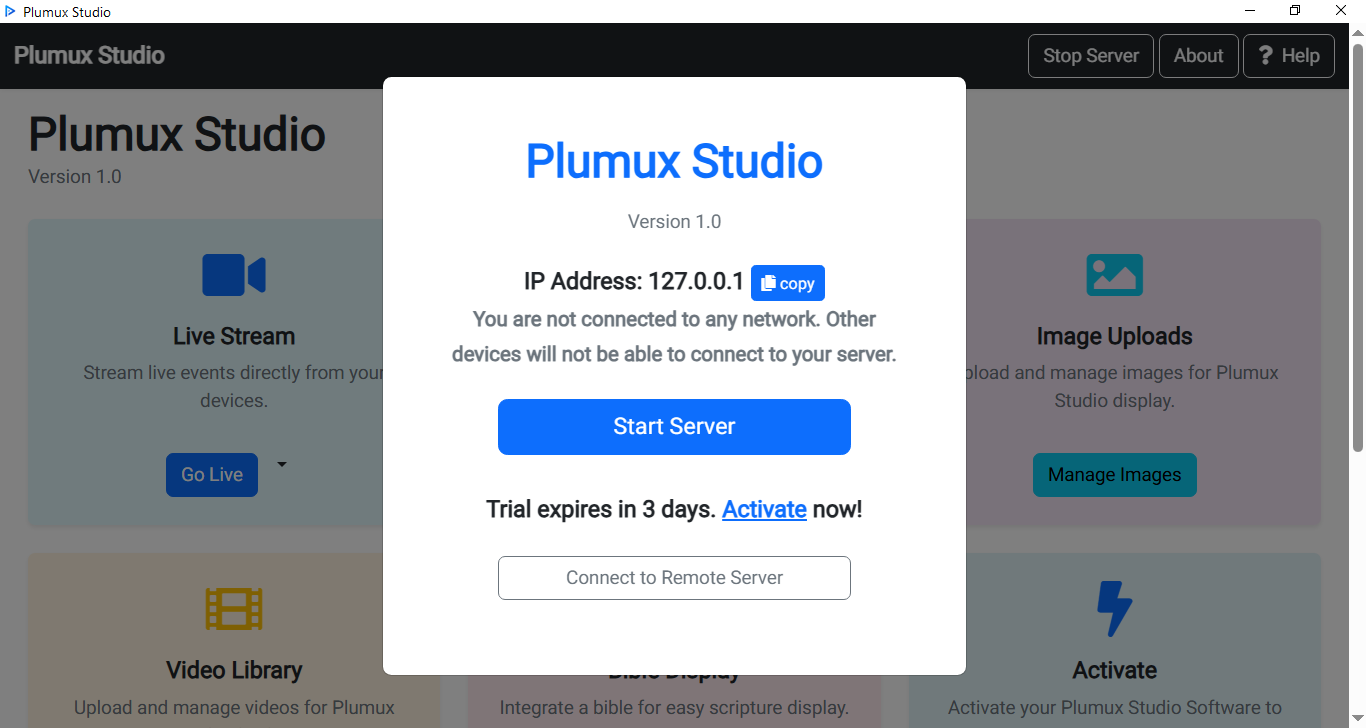
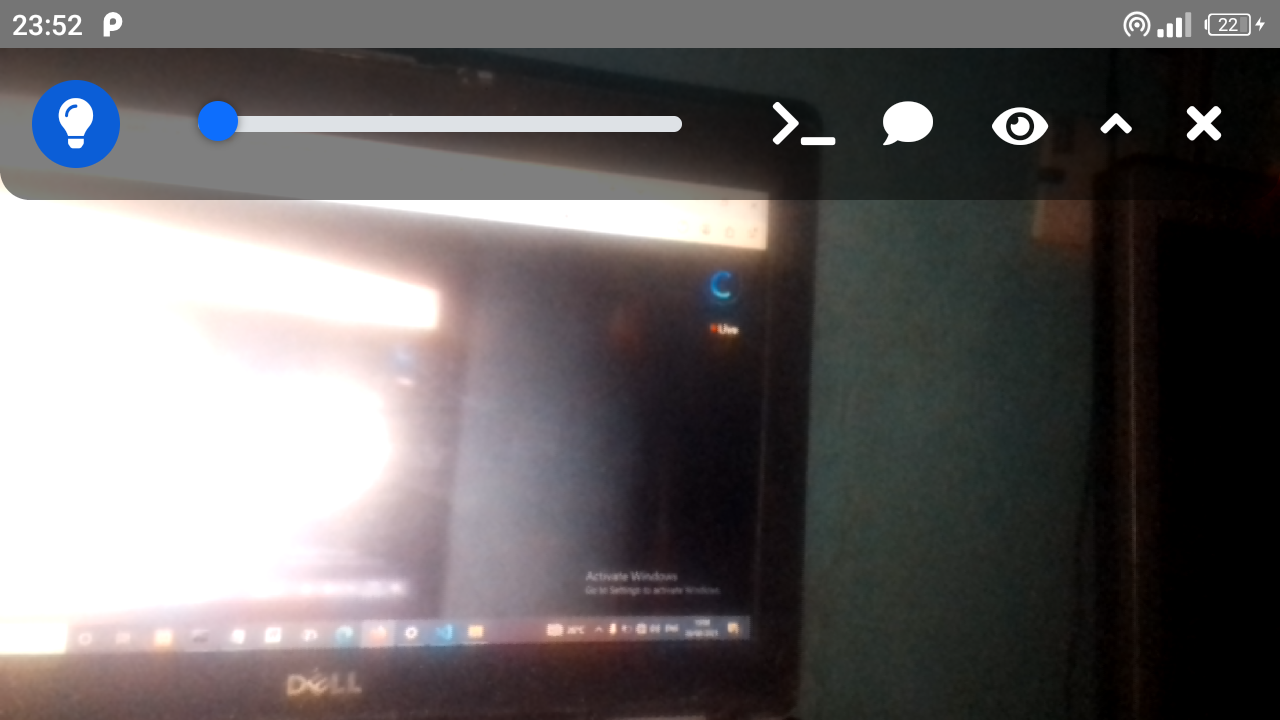
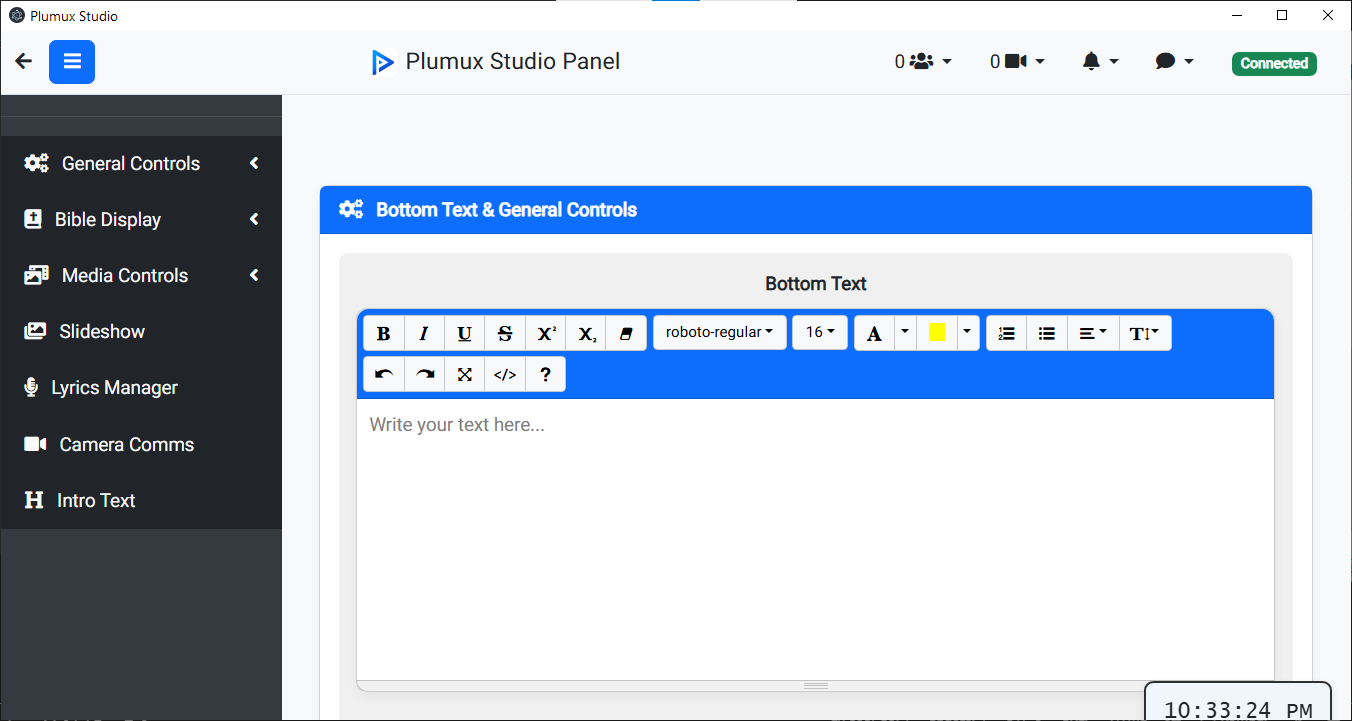
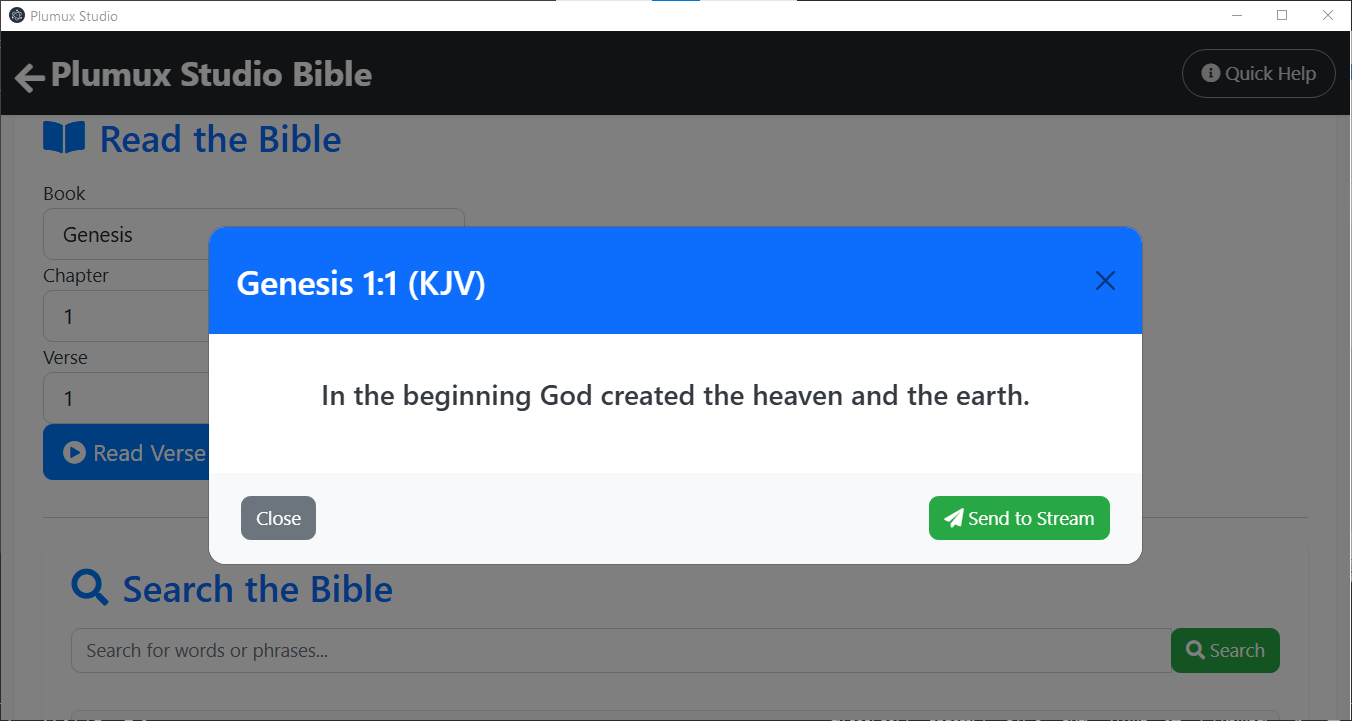
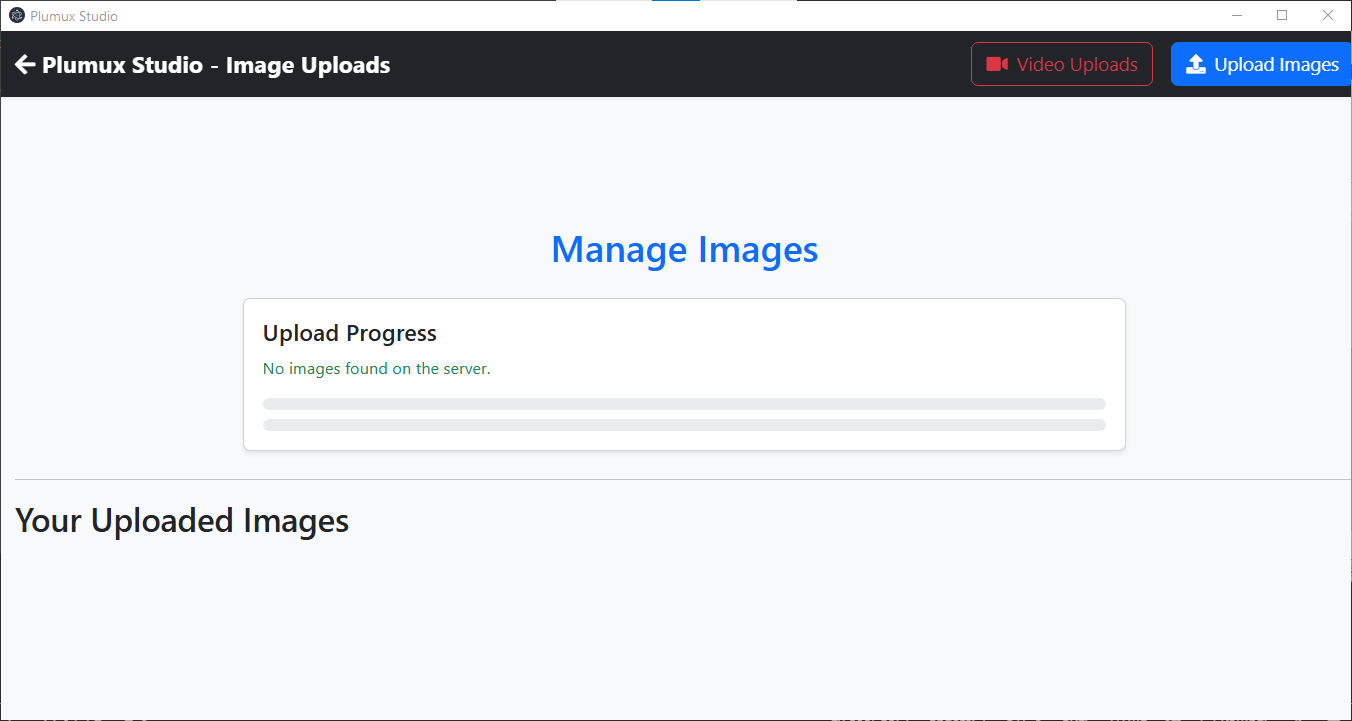
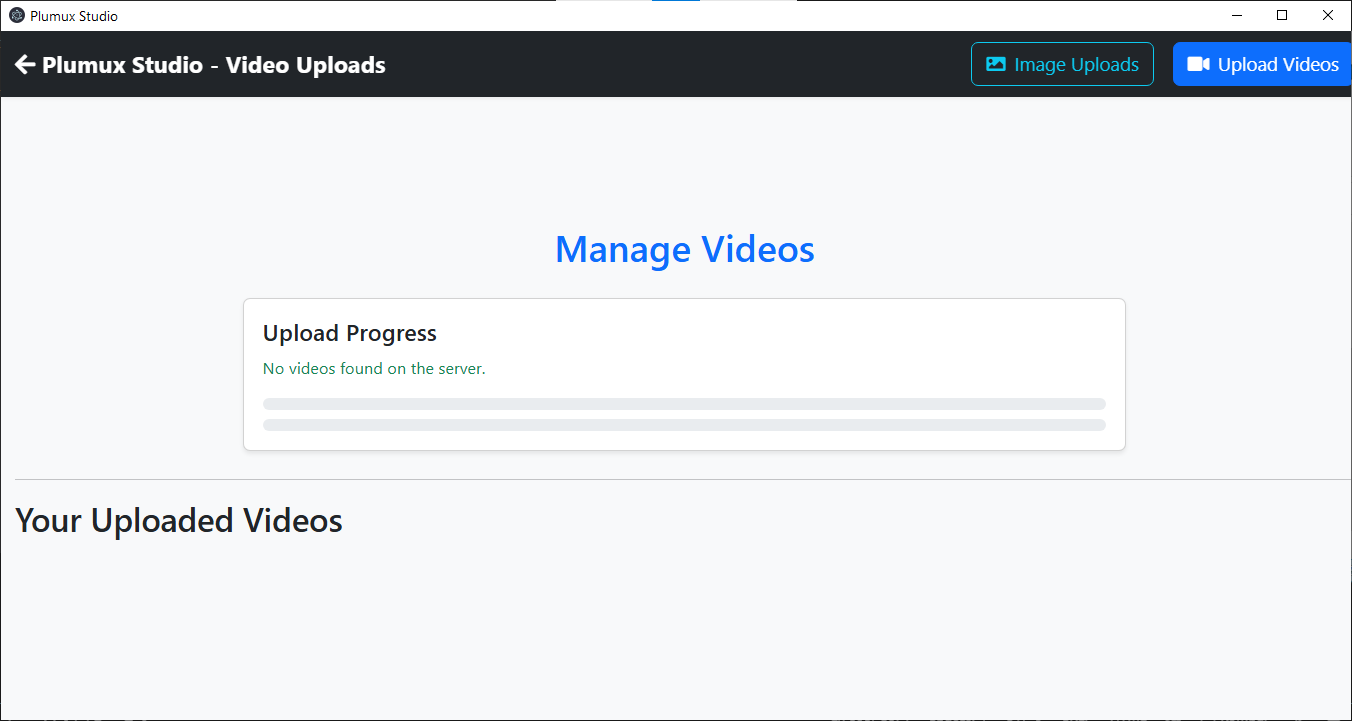
Plumux Studio in Action: App Screenshots
See how Plumux Studio's intuitive interface and powerful features look in real-time.
100% free during beta. No credit card. No payment. Just download and transform your phones into professional streaming cameras in minutes.
Join beta testers streaming live right now. No payment required. Ever.
Compatible with Windows 8, 10 & 11 (64-bit)
Choose your download source. Both are official and safe — pick whichever is faster for you.
Virus-scanned and safe • No account required • Instant download
Unlimited camera connections
Full control panel access
Bible display feature
Image & video uploads
Direct support from our team
Works completely offline
Limited to first 500 beta users. Download now to secure your spot and help shape the future of Plumux Studio!
Ensure your system meets the minimum specifications for optimal Plumux Studio performance.
Dual-core processor (Intel Core i3 or equivalent) or higher.
4 GB RAM minimum (8 GB recommended for multi-camera streams).
200 MB free disk space for installation.
Stable WLAN (Wi-Fi) connection (5GHz recommended for best performance).
Smartphone (Android) with a high speed RAM and working camera.
Monitor/TV connected to your PC for optimal viewing.
Follow these simple steps to install and set up Plumux Studio safely on your PC.
PlumuxStudio-1.0.0-setup.zip.
Right-click the file and select Extract All (or use WinRAR/7-Zip) to unpack the installer.
PlumuxStudio-1.0.0-Setup.exe.
If Windows Defender SmartScreen shows a warning, click More info → Run anyway.
Follow the on-screen setup instructions.
See how Plumux Studio's intuitive interface and powerful features look in real-time.
Stay up-to-date with the latest enhancements and bug fixes in Plumux Studio.
Stop paying for expensive equipment or complicated software. Get Plumux Studio completely free during our beta — turn your phones into a professional streaming setup in minutes.
Get Free Beta Access NowLimited to first 500 users • No credit card required • Setup in under 5 minutes